Advertisement
There’s something oddly satisfying about writing a piece of code, running it, and watching it pause, even for a second, as if it’s catching its breath. That’s exactly what time.sleep() does. It's one of the simplest tools in Python's standard library, yet it's surprisingly useful. Most programmers encounter it early, perhaps when trying to delay output or simulate loading, but few take the time to fully explore its range. This function has more depth than it gets credit for.
Used properly, time.sleep() can help manage execution flow, simulate wait times, reduce server overload, or create cleaner output in terminal applications. This article will break down eight practical ways to make the most of time.sleep(). No jargon, just clear examples and explanations.
At its core, time.sleep() just pauses your code. You pass it a number, and the program halts for that many seconds. This is what most people learn first.
import time
print("Starting...")
time.sleep(2)
print("Done waiting.")
The 2 means it will wait two seconds. Behind the scenes, it’s just putting the thread to sleep, blocking further execution until the timer is up. You can pass floats too.
time.sleep(0.5) # Sleeps for half a second
It’s clean, reliable, and works the same across platforms.

If you have a loop that's doing repetitive work—like polling a server or printing updates—it’s smart to slow it down with time.sleep().
for i in range(5):
print(f"Count: {i}")
time.sleep(1)
This prints one number every second. Without the delay, it would finish in a blink and be unreadable. It’s a simple way to control pacing.
You can even use it with user-facing timers:
for i in range(3, 0, -1):
print(i)
time.sleep(1)
print("Go!")
Perfect for countdowns.
When building scripts that interact with users or simulate processes, showing progress makes a big difference. You can create a fake loading bar using the time.sleep() function.
import sys
print("Loading", end="")
for _ in range(5):
sys.stdout.write(".")
sys.stdout.flush()
time.sleep(0.5)
print(" Done.")
By flushing the buffer manually and sleeping between dots, it feels more alive—like the script is working rather than just stalling.
Many APIs don’t like being called too fast. They’ll either throw an error or block you. Using time.sleep() is a simple fix.
import requests
urls = ["https://example.com/api/data1", "https://example.com/api/data2"]
for url in urls:
response = requests.get(url)
print(response.status_code)
time.sleep(1) # Wait between calls
Instead of hammering the server, this gives it breathing room. It's not a perfect solution—asyncio or token buckets are better for advanced work—but for small scripts or experiments, this works well.
You can get creative with time.sleep() by combining it with prints or cursor tricks. Try something like a simple typing effect.
import sys
text = "Typing this out..."
for char in text:
sys.stdout.write(char)
sys.stdout.flush()
time.sleep(0.1)
print()
Each character appears slowly, as if someone is typing. It's small touches like this that make CLI tools more engaging. It gives a human feel without needing fancy libraries.
When dealing with flaky connections or APIs, it’s common to try again after a failure. Sleeping before the next attempt helps avoid hammering a failing resource.
for attempt in range(5):
try:
risky_operation()
break
except Exception as e:
print(f"Attempt {attempt + 1} failed, retrying...")
time.sleep(2 ** attempt)
This is an exponential backoff. The sleep time increases after each failed try—2, 4, 8 seconds, and so on. It’s useful when dealing with rate limits or services that need a moment to recover.

When writing test scripts, especially for things like automation or UI simulation, delays help make the output more readable.
def run_tests():
print("Step 1: Checking connection...")
time.sleep(1)
print("Step 2: Validating input...")
time.sleep(1)
print("Step 3: Running assertions...")
time.sleep(1)
run_tests()
These delays aren’t for functionality—they’re for clarity. Anyone watching the output can follow what’s going on without getting flooded with results all at once.
If you want something to happen at a certain time—say, 10 seconds from now—you can measure the current time and sleep accordingly.
import time
target = time.time() + 10 # 10 seconds from now
while time.time() < target:
time.sleep(0.1)
print("Time reached.")
This ensures precision. A direct sleep (10) works, but in real-life situations, checking the clock gives you more control and lets you handle interruptions or checks along the way.
This technique can also help in scheduling small tasks without using cron or task schedulers. It's not ideal for large apps, but it does the job for short delays.
In simple games, text adventures, or terminal-based tools, time.sleep() helps control how fast the game responds or displays updates. It can throttle how quickly a player can press keys or slow down text-based scenes to improve pacing.
import time
def show_intro():
print("Welcome to the forest of silence...")
time.sleep(1.5)
print("You hear footsteps behind you.")
time.sleep(1.5)
print("Do you want to run or hide?")
time.sleep(0.5)
show_intro()
It’s a small thing, but it sets the mood. Instant text dumps kill immersion. Short pauses between lines build tension and give users time to absorb what’s happening.
You can also use it between player moves or after an action, so things don’t feel too rushed—especially if you're not using a full game engine. For text-heavy games or interactive prompts, this use of sleep() makes everything feel smoother and more readable.
time.sleep() is one of those rare tools in programming that’s as useful for beginners as it is for experienced developers. It doesn’t ask much—just a number of seconds—but what you do with it can vary widely. Whether you're spacing out API calls, making your scripts feel more human, or testing automation with smoother output, it plays a quiet but helpful role. It's not a tool you use for heavy-duty timing or precision. But for all the little pauses, simulated waits, or pacing your output, it's just right. Keep it in your toolbox. It's small but reliable.
Advertisement

Compare ChatGPT vs. HuggingChat to find out which AI chatbot works better for writing, coding, privacy, and hands-on control. Learn which one fits your real-world use

Hugging Face and FriendliAI have partnered to streamline model deployment on the Hub, making it faster and easier to bring AI models into production with minimal setup

Is premium AR worth the price? Discover how Xreal Air 2 Ultra offers a solid and budget-friendly AR experience without the Apple Vision Pro’s cost
How to apply the COUNT function in SQL with 10 clear and practical examples. This guide covers conditional counts, grouping, joins, and more to help you get the most out of SQL queries
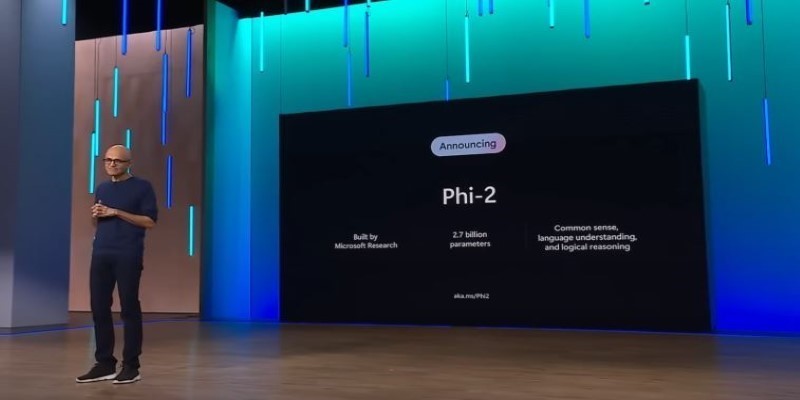
How Phi-2 is changing the landscape of language models with compact brilliance, offering high performance without large-scale infrastructure or excessive parameter counts
Explore the Python strftime() function and how it helps convert datetime objects into formatted strings. Learn common usage, tips, and avoid pitfalls in this detailed guide

How to use Librosa for handling audio files with practical steps in loading, visualizing, and extracting features from audio data. Ideal for speech and music and audio analysis projects using Python

How to use the Python time.sleep() function with clear examples. Discover smart ways this sleep function can improve your scripts and automate delays

Why INDEX MATCH is often a better choice than VLOOKUP in Excel. Learn the top 5 reasons to use INDEX MATCH for more flexible, efficient, and reliable data lookups

Need to deploy a 405B-parameter Llama on Vertex AI? Follow these steps for a smooth deployment on Google Cloud

Looking for the best cloud GPU providers for 2025? Compare pricing, hardware, and ease of use from trusted names in GPU cloud services

How the open-source BI tool Metabase helps teams simplify data analysis and reporting through easy data visualization and analytics—without needing technical skills